
How to rebuild a Minecraft schematic in Hytale
Keep the design. Review the materials. Build it yourself, one layer at a time, using Citadel Desk’s free Windows beta.
Citadel Desk opens a reference plan inside the viewer. It does not generate a native Hytale schematic file or place blocks in your game.
Windows 11 evaluated · 23.7 MiB ZIP · Beta limitations and download details
1. Start with one small structure
Use a Minecraft structure you created or have permission to use. A room, doorway or small house is a better first project than a large city: you can review the materials and finish a layer before committing to a bigger build.
Start with a Sponge .schem file. The documented readers also include legacy .schematic, .litematic and vanilla structure .nbt. Support depends on the file’s version and contents; see the release documentation and supported formats.
Work with a copy of the schematic. Game assets and example structures are not included with the app.
2. Open it and connect your Hytale assets
Extract the beta ZIP into a new folder, keep CitadelImport.exe beside CitadelDesk-QA.exe, then open the viewer. Use Open to select the copied schematic. Connect your own Hytale asset archive through the app’s asset setup.
The result should be your structure inside Citadel Desk. A very large file or unusual format may need more time or a fresh export. The first-project tutorial covers installation and the opening workflow.
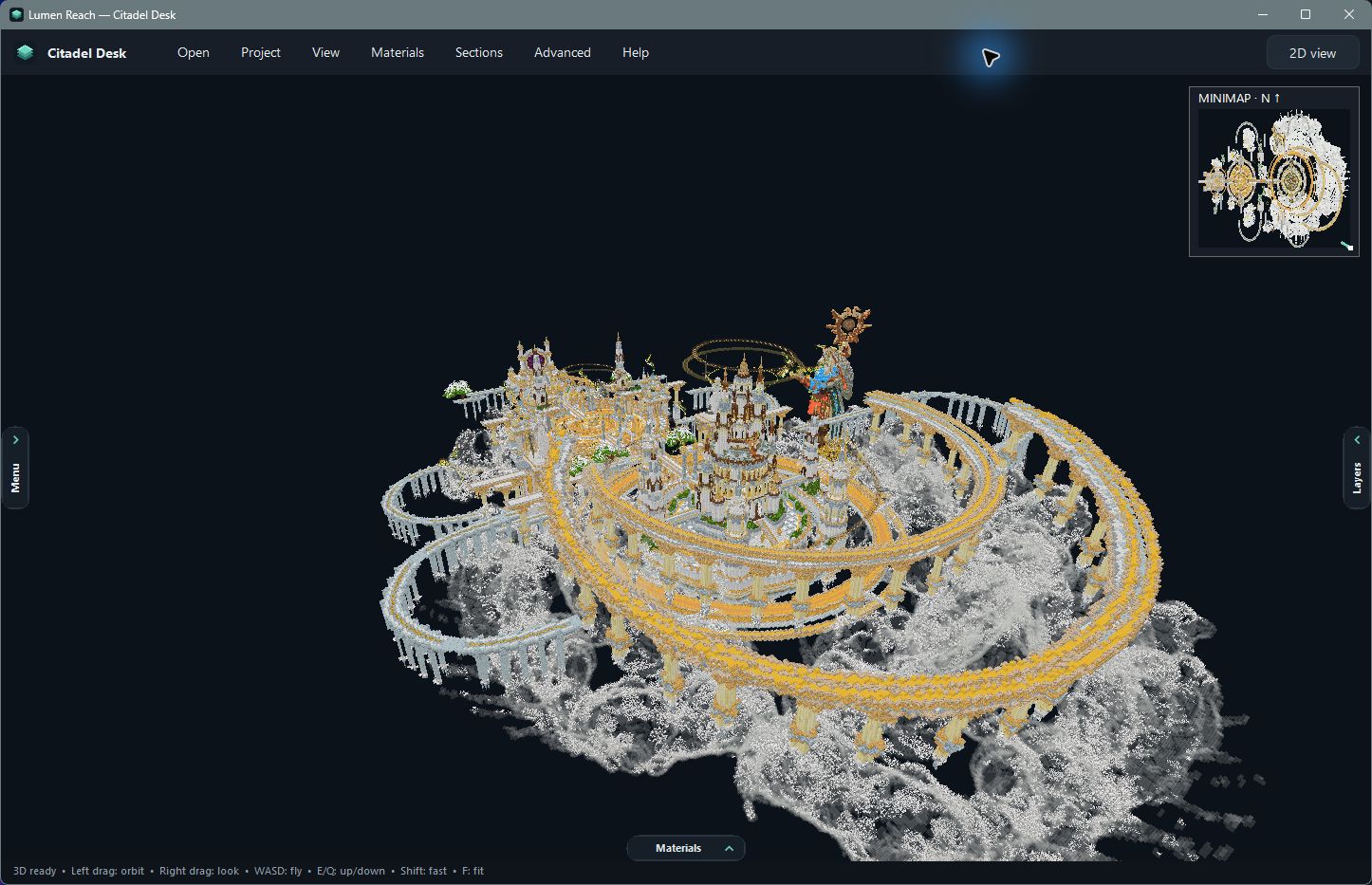
3. Review the material suggestions
Minecraft and Hytale materials are not identical. Review suggested replacements in the material picker and change a choice when another available material better suits the design. A suggestion is a starting point, not proof that the two blocks have identical shape or behavior.
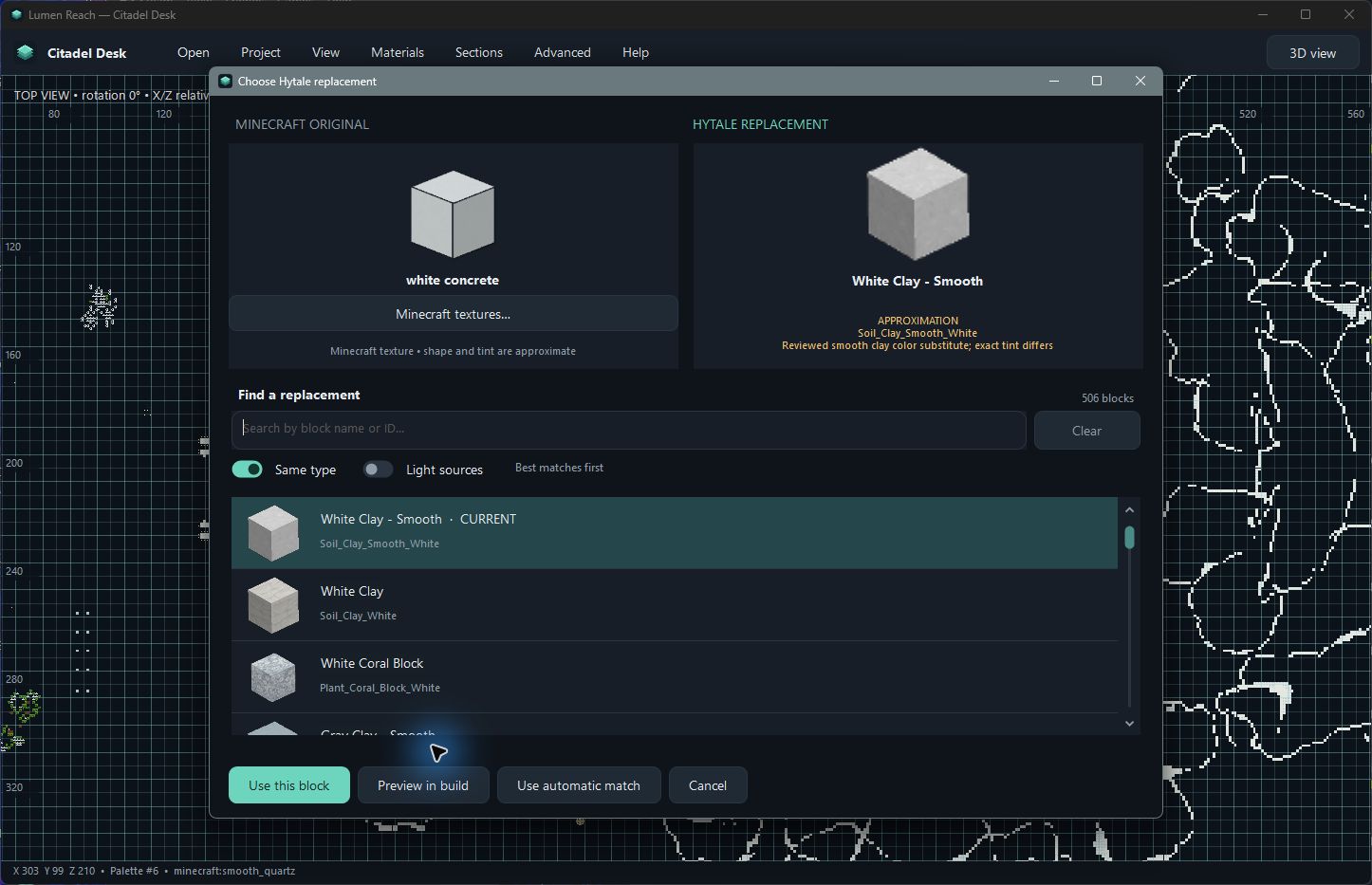
Pay extra attention to stairs, slabs, glass, foliage and custom trees. Tree-shaped groups may receive conservative bark suggestions, but detection is not comprehensive. Use Materials → Tree materials to review the suggestions or return to source materials.
4. Read a layer, then place the blocks yourself
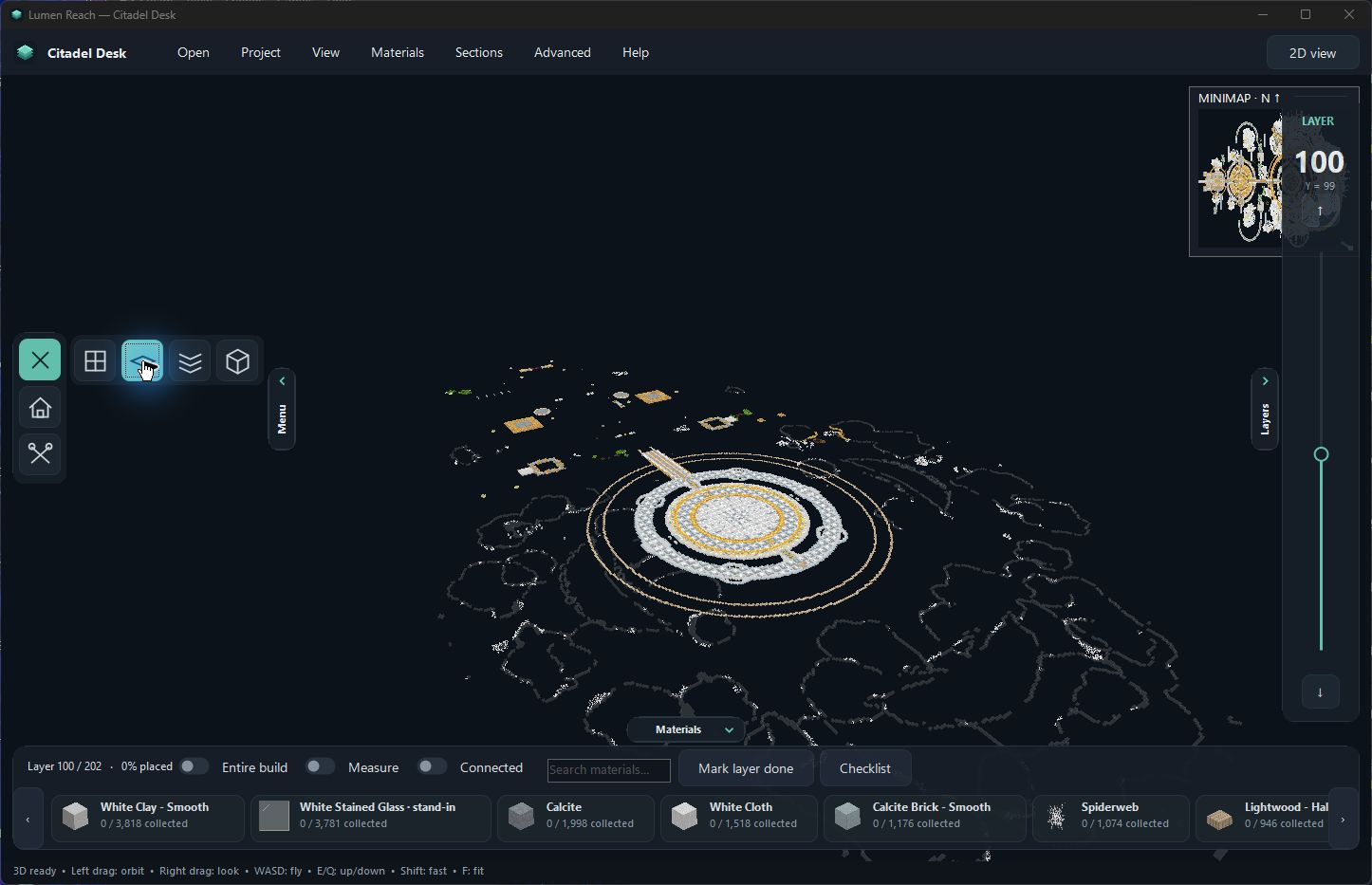
Use full 3D to understand the whole structure. Switch to current-layer 3D to isolate the selected height, or use the 2D plan to read individual cells. Keep the current layer visible as you reproduce it in Hytale.
Use the measure tool when a span is hard to judge. Check the actual readout rather than estimating from the perspective view.
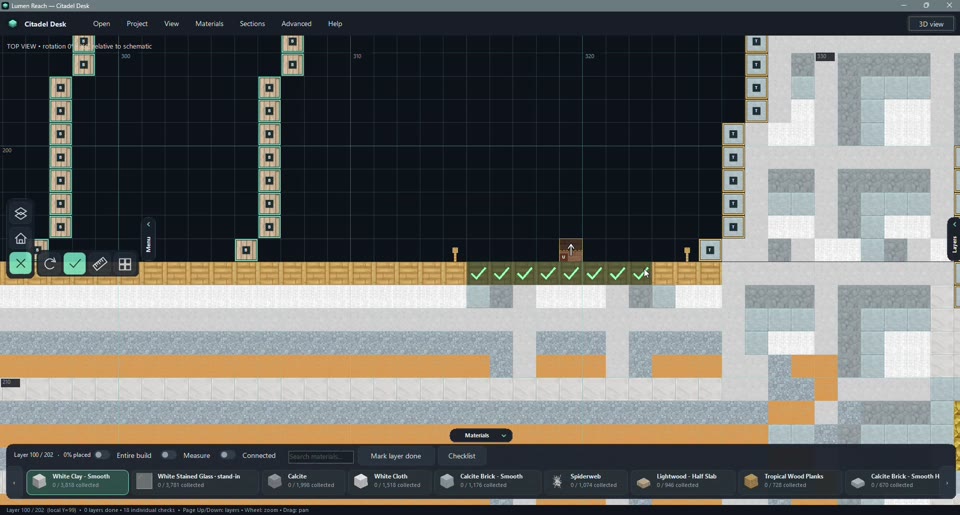
5. Check off progress and verify that it saves
After placing a block in Hytale, mark the corresponding cell in the 2D plan. Finish the layer, then move to the next one. These are manual checks; the app does not monitor the game.
Close and reopen your first small project to confirm the progress is restored before starting a long build. If a save warning appears, keep the project open and resolve it. Keep backups when trying a new beta.
Common Minecraft-to-Hytale questions
Will I receive a file I can import into Hytale?
No. This beta provides a plan inside Citadel Desk. A portable .citadel project reopens in Citadel Desk; it is not a native Hytale import file.
Will every block look exactly like the original?
No. Materials and some block shapes are approximate, and matching/rendering issues remain. Review the choices and known issues before following the plan.
Does it recreate entities, inventories or game behavior?
No. Imports focus on placed blocks. Entities, inventories, sign text, scripts and game behavior are not recreated by this workflow.
Is this an official Hytale product?
No. Citadel Desk is an independent project, not affiliated with or endorsed by Hypixel Studios.
Bring a small build. See whether the plan works for you.
Free Windows beta. No account required. The viewer is unsigned; keep Windows protections enabled and read the release guidance before launching.