Keep the structure in view.
Inspect a Minecraft schematic in 3D, then isolate the layer you are building.
Open a Minecraft schematic, review Hytale material suggestions, and follow the build one layer at a time.
A 3D viewer and manual building planner for people who want to place the blocks themselves. The main download guides manual building. Try the separate optional export beta for native prefabs; placement uses Hytale’s Creative tools.
Public beta. Material matches and some block shapes are approximate. Review suggestions, test with copies, and back up progress.
Explore the build. Switch layers. Check off blocks as you place them. Full demo →
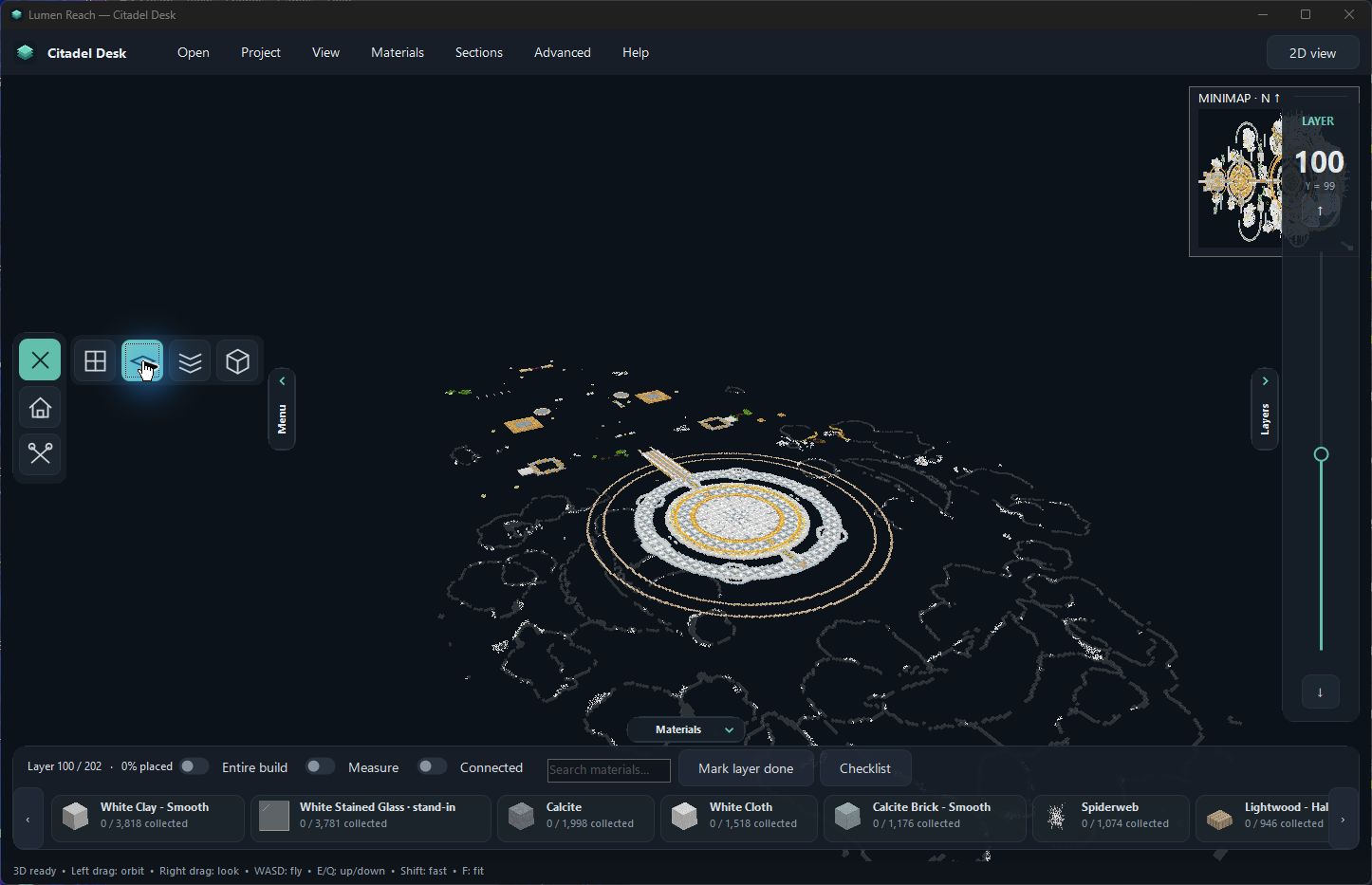
Focus on the selected layer in 3D. Select the image to inspect the interface.
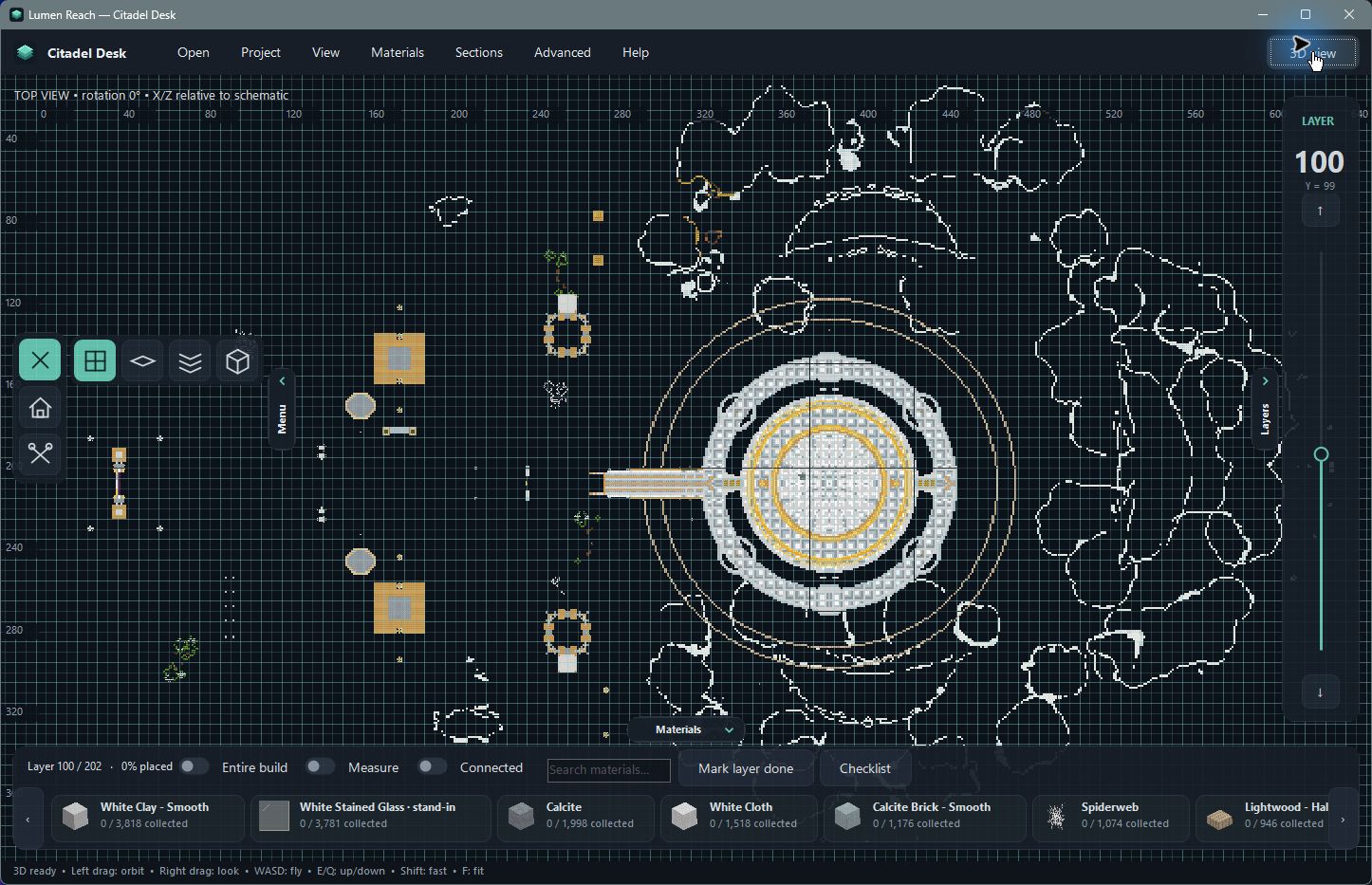
Read the blocks in a flat plan while rebuilding the structure manually.
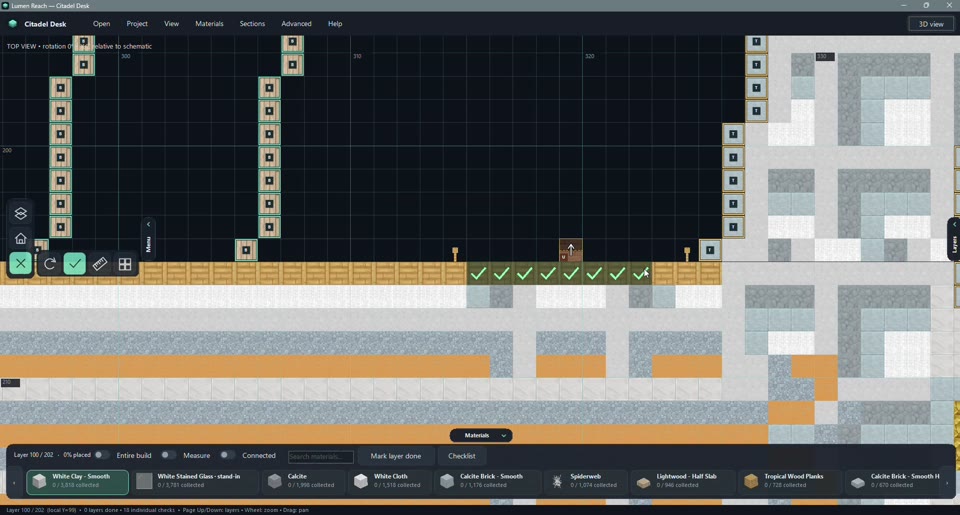
Mark blocks after placing them yourself. Citadel Desk does not detect in-game placement.
Inspect a Minecraft schematic in 3D, then isolate the layer you are building.
Compare suggested replacements with your connected Hytale assets and adjust a choice.
Check off blocks manually, complete layers, and return to saved progress.
The same structure, shown in the real app. Review suggestions before you begin building.
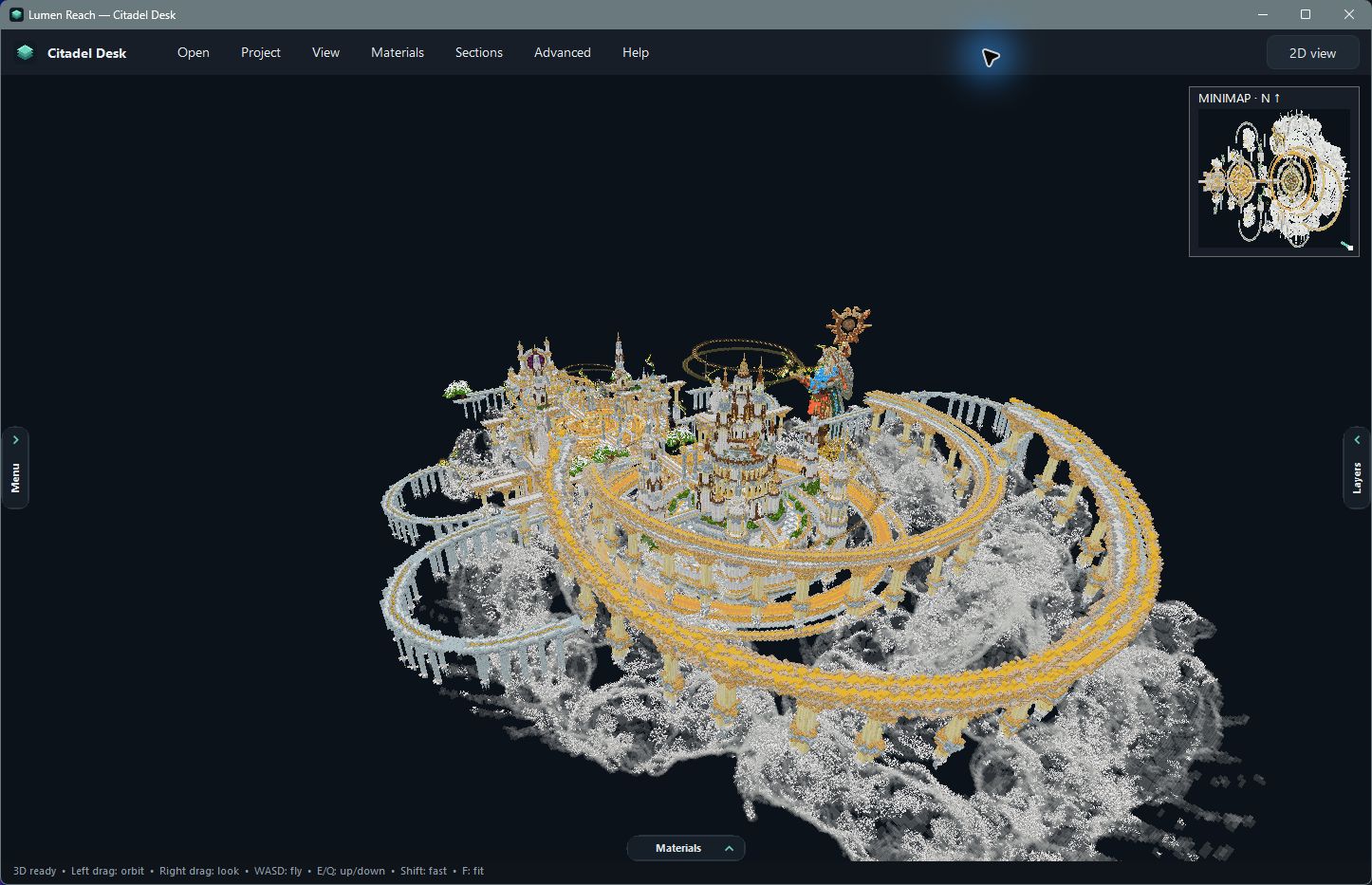
Choose Open and select a supported schematic you own or have permission to use.
Enlarge the imported model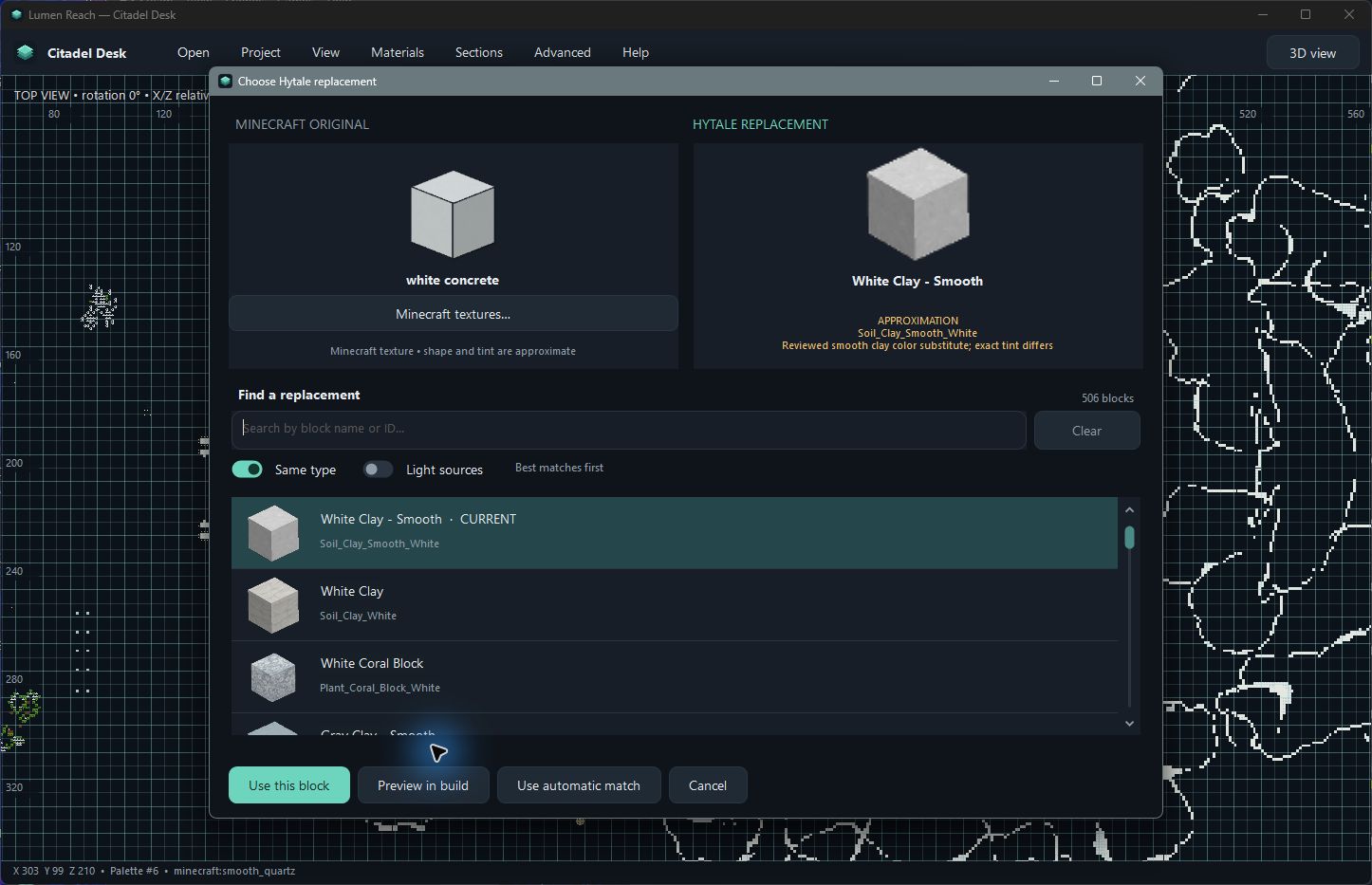
Review suggestions from your Hytale catalog. The material picker lets you compare and change a choice.
Enlarge the replacement reviewInspect layer views, place blocks manually in Hytale and check them off in the 2D plan.
Enlarge the layer planAlready have a schematic? Follow the Minecraft-to-Hytale planning guide →
Use the same imported structure across views. Watch the real viewer and layer tools in action.
Explore the model from different angles to understand its shape and architectural details. Use the measure tool to read spans between selected cells.
Switch to 3D current-layer view to focus on the selected height separately from the full structure.
Inspect individual block cells in a flat layer plan while placing blocks yourself in Hytale.
Mark corresponding blocks in the 2D plan after placing them in Hytale, then complete a layer. The app does not detect in-game placement.
Return to saved progress and material replacements. Confirm your progress saves before beginning a long project, and keep backups when trying a new beta.
Compare required materials with amounts you have collected. Inventory counts and placed-block checks are separate.
Planning a Hytale build from a Minecraft schematic? Start with a small .schem file, review its suggested Hytale materials, then follow the plan in the viewer as you build. Citadel Desk is a planning app; it does not place blocks in your game.
Use a schematic you created or have permission to use. Game assets and schematic downloads are not bundled. Other documented Minecraft and Hytale input formats are listed below.
| Input | Extensions | Documented versions |
|---|---|---|
| Java schematics | .schem, .schematic | Sponge 1–3; legacy MCEdit / WorldEdit |
| Java structures | .litematic, .nbt, .bp | Litematica packed regions; vanilla structures; Axiom 1 |
| Minecraft worlds | .zip, .mcworld | Java Anvil; Bedrock LevelDB. Select an area. |
| Bedrock structures | .mcstructure | Structure 1–2 |
| Hytale files | .prefab.json, .hytale.world.zip | Prefab JSON through 8; indexed worlds 1, block sections 6 (migration through 11) |
| Citadel projects | .citadel | Reopen a portable project in Citadel Desk |
Importing creates a reference build inside Citadel Desk, with suggested materials, layer plans and manual progress tracking. A portable .citadel project reopens in Citadel Desk; it is not a native Hytale import file.
Imports focus on placed blocks. Entities, inventories, sign text, scripts and game behavior are not recreated. Newer or mod-specific formats may need a reader update. Read the complete release README.
Use a structure you created, such as a doorway or a simple room. Connect your Hytale textures, review a material and check a placed block. Reopen the app to confirm your progress saved.
Follow the first-project tutorialCitadel Desk turns supported Minecraft schematics into Hytale build plans inside the viewer. Review suggested material replacements, inspect 2D or 3D layers and track blocks as you place them manually in Hytale. The main download is a manual planner. The optional QA8b beta adds reviewed native prefab export for Hytale 0.7.4. Placement uses the game’s Creative prefab tools. Follow the Minecraft-to-Hytale planning tutorial.
A reference build inside Citadel Desk: 2D layer plans, 3D views, a material list, suggested Hytale replacements and manual progress tracking. Place blocks yourself in Hytale. The main download does not export native prefabs. The optional QA8b beta exports compatible, reviewed prefabs for Hytale 0.7.4. It does not paste blocks automatically or detect in-game progress.
Export a .citadel project to reopen in Citadel Desk. It contains the schematic, progress and project settings. It is not a Hytale import file and contains no game textures.
Review its match status and choose a real alternative. Some materials use a display stand-in to preserve the source shape. A stand-in is a Citadel Desk display object, not a playable Hytale block or an installed mod. Unknown or modded materials can require your choice.
Yes. Select a material, choose Hytale block, compare a candidate and select Use this block. Your choice saves with the build. Use automatic match returns to the suggestion.
Progress and view settings save automatically in the app's data folder. Keep it when updating. On the next launch, the app reopens your last schematic at its saved layer and view. If the file moved, open it again. Portable projects and progress backups provide additional recovery options.
Imports and viewing work offline. Connect your own Hytale installation's Assets.zip for its catalog and textures. Game assets are not bundled. Connected releases can check for updates online; downloads open in your browser.
The current Windows app is free to download and use. No account or subscription is required. Your own Hytale installation supplies game assets. Ko-fi support is optional.
The documented world-area import limit is 60 million cells. World archives are limited to 16 GB expanded and 200,000 entries. These are import limits, not a performance guarantee. Start small; use current-layer views or smaller sections for demanding builds.
Known issues & troubleshooting · First-project help · Minecraft-to-Hytale guide
Published October 14, 2026 · Evaluated on Windows 11.
Portable test build based on the available 1.5.2 source. The executable retains 1.5.2 version metadata and is named CitadelDesk-QA.exe. Exact equivalence with the earlier installed 1.5.2 release has not been established.
No account or subscription required. Uses Windows .NET Framework and OpenGL through your graphics driver. Keep CitadelImport.exe beside the viewer. Connect your own Hytale assets; game assets and schematics are not bundled.
Portable ZIP · 24,855,673 bytes
Extract into a new folder and open CitadelDesk-QA.exe. Keep your existing installation and project backups.